
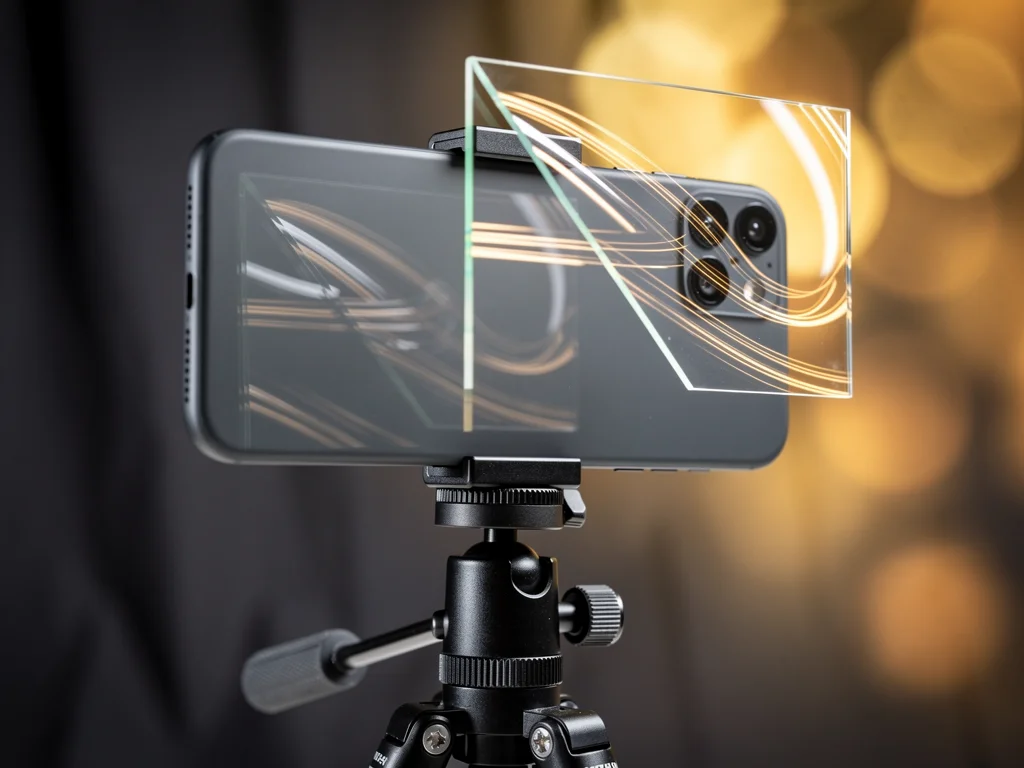
Here’s a problem everybody who records themselves knows. You write a script. Good script. Then you press record and suddenly you’re looking down at your notes like you’re reading a grocery list, and the whole video dies right there. An iPhone teleprompter app exists precisely for this, and Read to Camera is one of the more focused ones: transparent scrolling text over the selfie camera, manual pace, portrait or landscape recording, and nothing else pretending to be something it isn’t.
So let’s understand how it actually works. Because the details matter here, and the details are where most people get confused.
What Read to Camera actually is
Read to Camera is a teleprompter and front-camera recorder for iPhone, made by developer Yurii Koshkin, listed in the Photo & Video category on the App Store. It requires iOS 17.0 or later, it’s 8.3 MB, and it’s designed for iPhone. Not verified for macOS, not an Android thing, not a desktop editor. An iPhone utility. That’s the whole category.
The core idea is simple. The prompt stays close to the front camera, so you connect with your audience instead of looking down at notes. Updated versions overlay transparent text on the camera preview. You see yourself, you see your words floating near the lens, you read, you record. The viewer of the finished video sees none of it. No scrolling words, no countdown, no margins. Just you, talking.
What it is not: it’s not an AI writing service. It doesn’t generate your script. It doesn’t follow your voice. It’s not a video editor. If you go in expecting any of that, you’ll be disappointed, and that’s your fault, not the app’s.
How the transparent scrolling text works
The mechanism is the interesting part, because it explains why this category of app exists at all.
Your eyes need to be near the lens. That’s the entire trick of looking natural on camera. A piece of paper on the desk fails. A second device propped next to the phone fails. Read to Camera puts the words over the camera preview itself, right where your eyes already are. You write or paste your script into a private on-device library, open the camera view, and the text scrolls over your own image while you read.
Manual pace, not voice-following
This is a manual scrolling teleprompter. You set the speed. You find a pace that matches your delivery. This is a deliberate design choice, and it’s worth understanding, because other apps in this space do the opposite. PromptSmart+, for example, is built around VoiceTrack, speech-recognition scrolling that follows you as you talk and stops when you pause. That’s a different philosophy: the machine listens, the machine decides. Read to Camera leaves the pace in your hands, and you can adjust it while the take is in progress, pause the prompt, resume it. Slower on the hard sentence, faster through the part you know cold.
The display controls
The reading experience is tunable, and it should be, because no two faces and no two lighting setups are the same:
Scrolling speed
Text size
Spacing and margins
Text color
A countdown of 3, 5, or 10 seconds before recording starts
Mirror mode
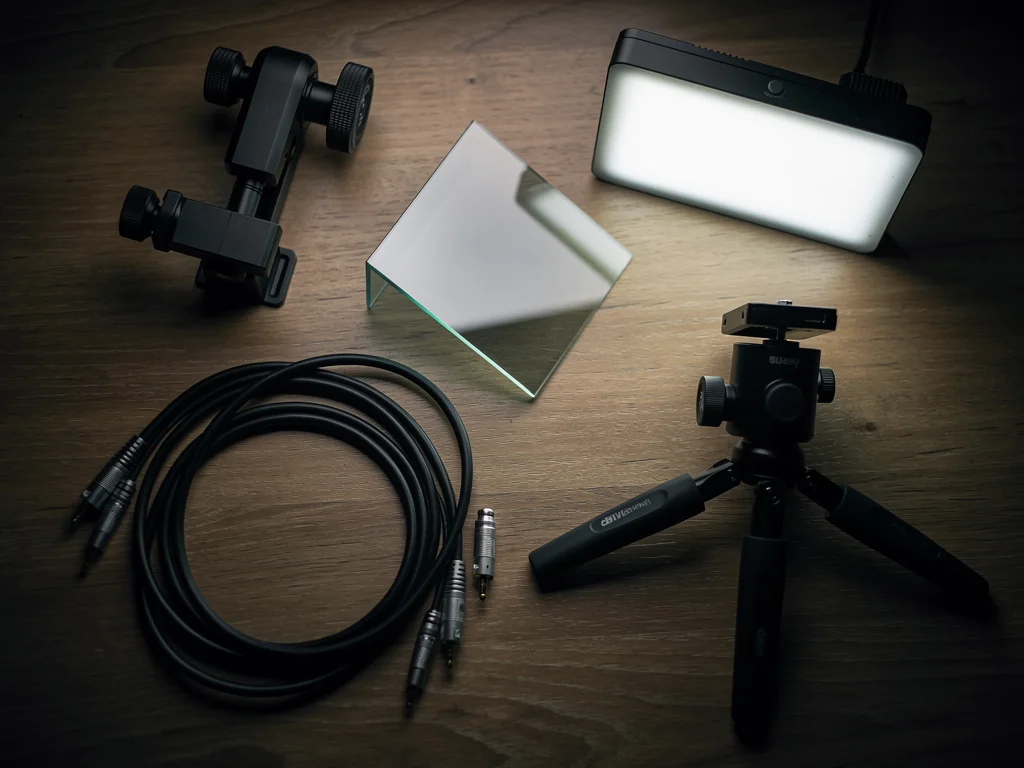
Mirror mode deserves its own sentence. It mirrors only the prompt, not the video. Why would you want mirrored text? Because some people put the iPhone behind a beam-splitter, actual teleprompter glass, and glass flips the image. The saved video stays normal. Ordinary selfie users never touch this. Rig users can’t live without it.
Practice versus recording: the distinction that matters
Here’s where people get it wrong, so pay attention.
Seeing the prompt over your camera is not a recording. In app versions that offer introductory camera practice, you can allow camera access, watch a moving greeting scroll over your own face, and get a feel for the pace before you’ve written a single word. That practice is silent. It saves no video. No file is created. The camera preview is a rehearsal space, nothing more.
Why does this matter? Because the smart way to use the app is to practice a spoken script before recording on camera. Write the short script. Run it over the preview. Notice where you stumble, where the sentence is too long for one breath, where the scroll speed fights you. Fix the script. Run it again. Only then do you make a real take.
And yes, you can do the same preparation with paper. People did it for decades. The difference is that paper sits below the lens and the app puts the words beside it. That’s the entire product, honestly, and it’s enough.
Recording a clean take
When you do record, the workflow is built around the front camera. You record with the front camera and microphone, or you explicitly continue without sound if that’s what you want. You pick portrait or landscape before recording, and that orientation stays locked for the take. No mid-take rotation surprises.
During the take you can pause or resume the prompt and change its speed. After the take you preview the result, save it to Photos, share it, or record another take. The prompt controls never appear in the finished video. The export is described as clean and watermark-free when the applicable recording access is available.
Notice the hedge in that last sentence. It’s doing work. Keep reading.
What it costs, and the access question
The app is free with in-app purchases, but access to recording and export is not identical for everyone. The website and the App Store listing say the same thing: some users can export one watermark-free video at no charge, while others need Pro before recording. So the free path is real but variable. Script writing, editing, and camera-preview practice may cost you nothing. An actual saved recording may require a purchase, depending on your app version and what the offer screen shows you.
The Pro options, per the App Store listing:
Monthly Pro at $4.99 (US listing), renewing automatically unless canceled, no free trial
Annual Pro, where offered, with a three-day trial that appears only when Apple confirms eligibility
Lifetime Pro at $39.99, one purchase, no renewal
Monthly and annual unlock the same recording features. Lifetime unlocks the same features outright. Prices and renewal terms vary by storefront and can change; Apple’s purchase sheet shows the localized price before you commit. Restore is available in Settings and on the paywall, which matters if you switch phones.
Privacy: what’s actually on the table
The privacy story is unusually central to the product copy, so let’s be precise about what is claimed and by whom.
The developer states that scripts and recording drafts stay on the iPhone. No account, no sign-in, no cloud workspace, no product-owned server for the core workflow. No advertising, no cross-app tracking. Product analytics are on by default but can be turned off in Settings, and the analytics never include scripts, recordings, camera video, or microphone audio.
Now the App Store privacy section, which is the developer’s own declaration to Apple: purchases, identifiers, and usage data may be collected for analytics, not linked to your identity. Apple adds its standard caveat that it has not verified the developer’s statements and that practices can vary by feature or age. Both things are true at once: the product copy says your words and recordings never leave for analytics, and the privacy label says some anonymous usage data does get collected. Those aren’t contradictions. They’re different layers of the same answer.
How it compares to the alternatives
Fair question: why this app and not something else? The honest answer is that the category is crowded and the differences are philosophical.
PromptSmart+, mentioned above, bets on voice-following and charges $8.99 monthly or $79.99 annually, with language packs at $29.99 each. It’s a 1.7 GB install supporting iOS 16 and up. Read to Camera bets on manual control and an 8.3 MB install. Different tools for different temperaments.
Teleprompter for Video goes the other direction: a full production suite with 4K recording, green screen, captions, AI script writing, and a free tier capped at 750 characters, roughly a minute of video. Its privacy label, unlike Read to Camera’s, lists data used to track you across apps and data linked to your identity. If you want an editing suite, that’s a reason to pick it. If you want a private, minimal reading tool, it’s a reason not to.
Then there’s Detail, which integrates a teleprompter into a broader recording app with an optional AI script writer, and CapCut, which builds a teleprompter into its editor with a 5,000-character script limit and fixed recording lengths like 15 seconds, 60 seconds, or 3 minutes. Those are editors with a teleprompter attached. Read to Camera is a teleprompter, full stop. Whether that’s a limitation or a virtue depends entirely on what you already have.
Where it fits, and where it doesn’t
The listing names its audience directly: creators, presenters, educators, auditions, courses, product videos, social content. Any moment where you want to speak clearly without looking away from the lens. The version history tells the same story of a young, focused product: the 1.0 series launched in September, and version 1.0.6 added exactly the feature this article keeps coming back to, seeing yourself while the words move, with the clarification that the camera preview is not recording.
What it doesn’t do: it doesn’t claim creator revenue, audience growth, or business outcomes. It doesn’t edit your video after the take. It doesn’t write your script. It doesn’t follow your voice. If your workflow needs captions, cuts, and effects, you record here and finish somewhere else.
So the practical picture is this. You have a short thing to say on camera. You write it, you paste it, you run it over the preview until the pace feels like your own voice, and then you record a take where your eyes never leave the lens. Whether the saved video costs you nothing, $4.99 a month, or $39.99 once depends on which access path your install shows you. Check the purchase sheet before you assume.
People Also Ask
What iOS version does Read to Camera require?
The App Store listing requires iOS 17.0 or later on iPhone. The listing also shows Mac compatibility requirements (macOS 14.0 with an Apple M1 chip or later), but the app is identified as designed for iPhone and not verified for macOS.
Does the app use voice-following or manual scrolling?
Manual scrolling, full stop. The speed is yours to set, and mid-take you can slow it down, speed it up, pause it, or resume it. The app never listens to your speech to decide where the text should be.
Can I practice with the camera without recording a video?
Yes. In versions that offer introductory camera practice, you can allow camera access and watch the prompt move over your camera preview without any recording taking place. Practice is silent and creates no video file; a saved take is a separate, explicit step.
Do the scrolling words appear in the finished video?
No. The prompt, countdown, margins, and other controls exist only in the live reading interface. The exported video contains just the camera image and audio, and is described as clean and watermark-free when the applicable recording access is available.
The bottom line
Read to Camera does one job: it keeps your words next to the lens so your eyes stay on the audience. Transparent text over the selfie preview, a pace you control, portrait or landscape locked before the take, and a clean export that shows none of the machinery. The free practice path lets you rehearse without saving anything; the paid tiers, monthly, annual, or lifetime, handle the recording side, with the exact access depending on your version. If your problem is looking down at notes, this is the category of tool that fixes it, and this is a deliberately small, private member of that category. The rest, the script, the delivery, the part where you actually say something worth hearing, is still on you.
Additional Resources
This article includes content created with AI.